# Flaxon VS Code Extension - Getting Started
## Overview
The **Flaxon VS Code Extension** provides full IDE support for **Flaxon**, the async-first Python full-stack framework. It brings intelligent code completion, route exploration, debugging, and project scaffolding directly into your editor.
| Property | Value |
|----------|-------|
| **Version** | 0.1.2 |
| **Publisher** | Flaxon |
| **License** | MIT |
---
# Installation
## From the VS Code Marketplace
1. Open **Visual Studio Code**.
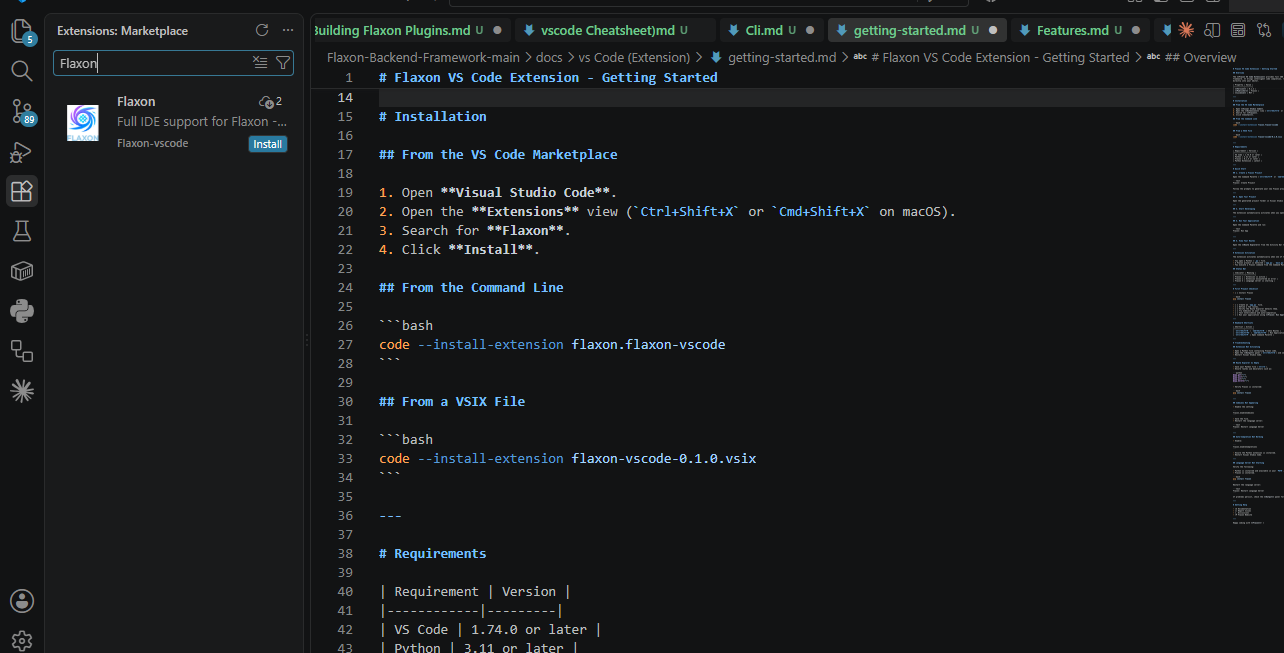
2. Open the **Extensions** view (`Ctrl+Shift+X` or `Cmd+Shift+X` on macOS).
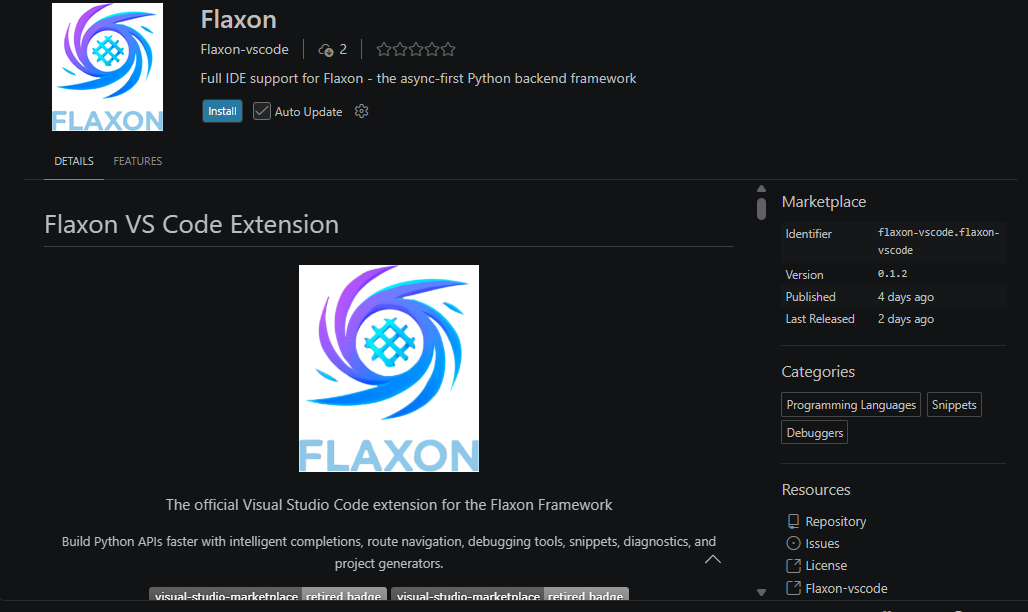
3. Search for **Flaxon**.
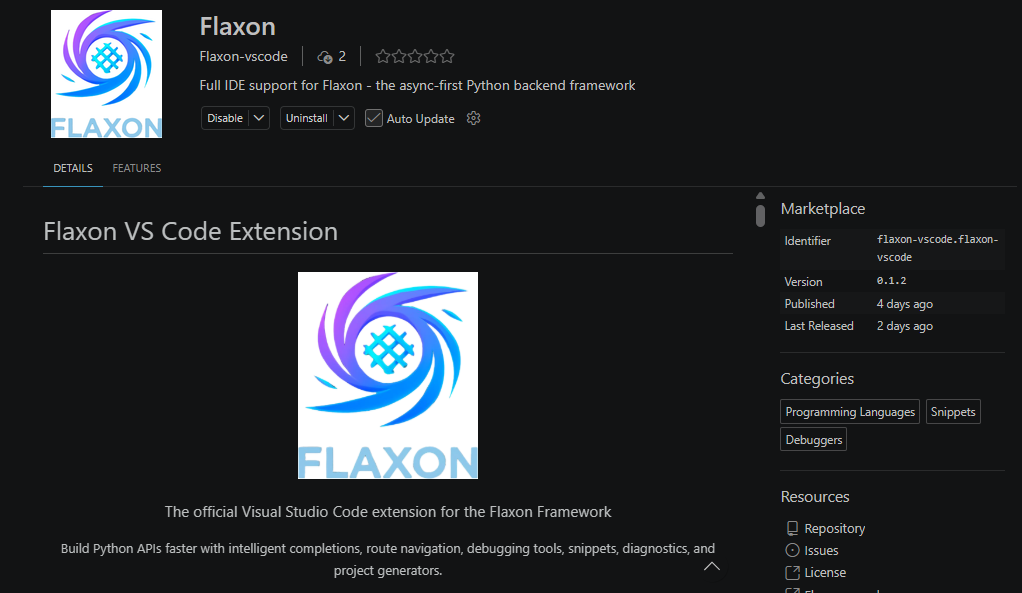
4. Click **Install**.
## From the Command Line
```bash
code --install-extension flaxon.flaxon-vscode
```
## From a VSIX File
```bash
code --install-extension flaxon-vscode-0.1.0.vsix
```
---
# Requirements
| Requirement | Version |
|------------|---------|
| VS Code | 1.74.0 or later |
| Python | 3.11 or later |
| Flaxon | 0.1.5 or later |
| Python Extension | Latest |
---
# Quick Start
## 1. Create a Flaxon Project
Open the Command Palette (`Ctrl+Shift+P` or `Cmd+Shift+P` on macOS) and run:
```text
Flaxon: Create Project
```
Follow the prompts to generate your new Flaxon project.
---
## 2. Open Your Project
Open the generated project folder in Visual Studio Code.
---
## 3. Start Developing
The extension automatically activates when you open a supported Flaxon project.
---
## 4. Run Your Application
Open the Command Palette and run:
```text
Flaxon: Run App
```
---
## 5. View Your Routes
Open the **Route Explorer** from the Activity Bar to browse all discovered routes.
---
# Extension Activation
The extension activates automatically when one of the following occurs:
- You open a Python (`.py`) file.
- A Flaxon project is detected (`app.py`, `main.py`, or `flaxon.py`).
- You execute a Flaxon command from the Command Palette.
## Status Bar
| Indicator | Meaning |
|-----------|---------|
| Flaxon ✓ | Extension is active |
| Flaxon ✗ | Extension encountered an error |
| Flaxon ⟳ | Language server is starting |
---
# First Project Checklist
- [ ] Install Flaxon
```bash
pip install flaxon
```
- [ ] Create an `app.py` file.
- [ ] Define a few routes.
- [ ] Verify the Route Explorer detects them.
- [ ] Try CodeLens on your routes.
- [ ] Test IntelliSense and auto-completion.
- [ ] Run your application using **Flaxon: Run App**.
---
# Keyboard Shortcuts
| Shortcut | Action |
|----------|--------|
| `Ctrl+Shift+R` / `Cmd+Shift+R` | Show Routes |
| `Ctrl+Shift+F5` / `Cmd+Shift+F5` | Run Application |
| `Ctrl+Shift+P` | Open Command Palette |
---
# Troubleshooting
## Extension Not Activating
- Open a Python file containing Flaxon code.
- Open the **Output** panel (`Ctrl+Shift+U`) and select **Flaxon**.
- Restart Visual Studio Code.
---
## Route Explorer Is Empty
- Save your Python file (`Ctrl+S`).
- Ensure routes use decorators such as:
```python
@app.get("/")
@app.post("/")
@app.put("/")
@app.delete("/")
```
- Verify Flaxon is installed:
```bash
pip install flaxon
```
---
## CodeLens Not Appearing
- Enable the setting:
```
flaxon.enableCodeLens
```
- Save the file.
- Restart the language server:
```text
Flaxon: Restart Language Server
```
---
## Auto-Completion Not Working
- Enable:
```
flaxon.enableCompletions
```
- Ensure the Python extension is installed.
- Restart Visual Studio Code.
---
## Language Server Not Starting
Verify the following:
- Python is installed and available in your `PATH`.
- Flaxon is installed.
```bash
pip install flaxon
```
Restart the language server:
```text
Flaxon: Restart Language Server
```
If problems persist, check the **Output** panel for diagnostic messages.
---
# Getting Help
- 📚 Documentation
- 🐛 Report Issues
- 💬 Discussions
- 🌐 Flaxon Website
---
Happy coding with **Flaxon**! 🚀